Recognizing your team members who have received exceptional member feedback is a great way to celebrate wins, reinforce positive behaviors, and boost team morale. Small moments of recognition help demonstrate the value of surveying your members - not as a way to catch mistakes, but as a way to highlight exceptional service.
To help make employee recognition quick and easy, MemberView offers the Perfect Score Recognition Tool, which allows you to send recognition directly from the MemberView platform. This tool helps you:
- Pull a list of perfect-score surveys
- Easily identify perfect-score surveys using a dedicated recognition column
- Send recognition directly to employees associated with perfect-score surveys
- Export a list of perfect-score surveys for reporting or sharing
Where to Access the Perfect Score Recognition Tool
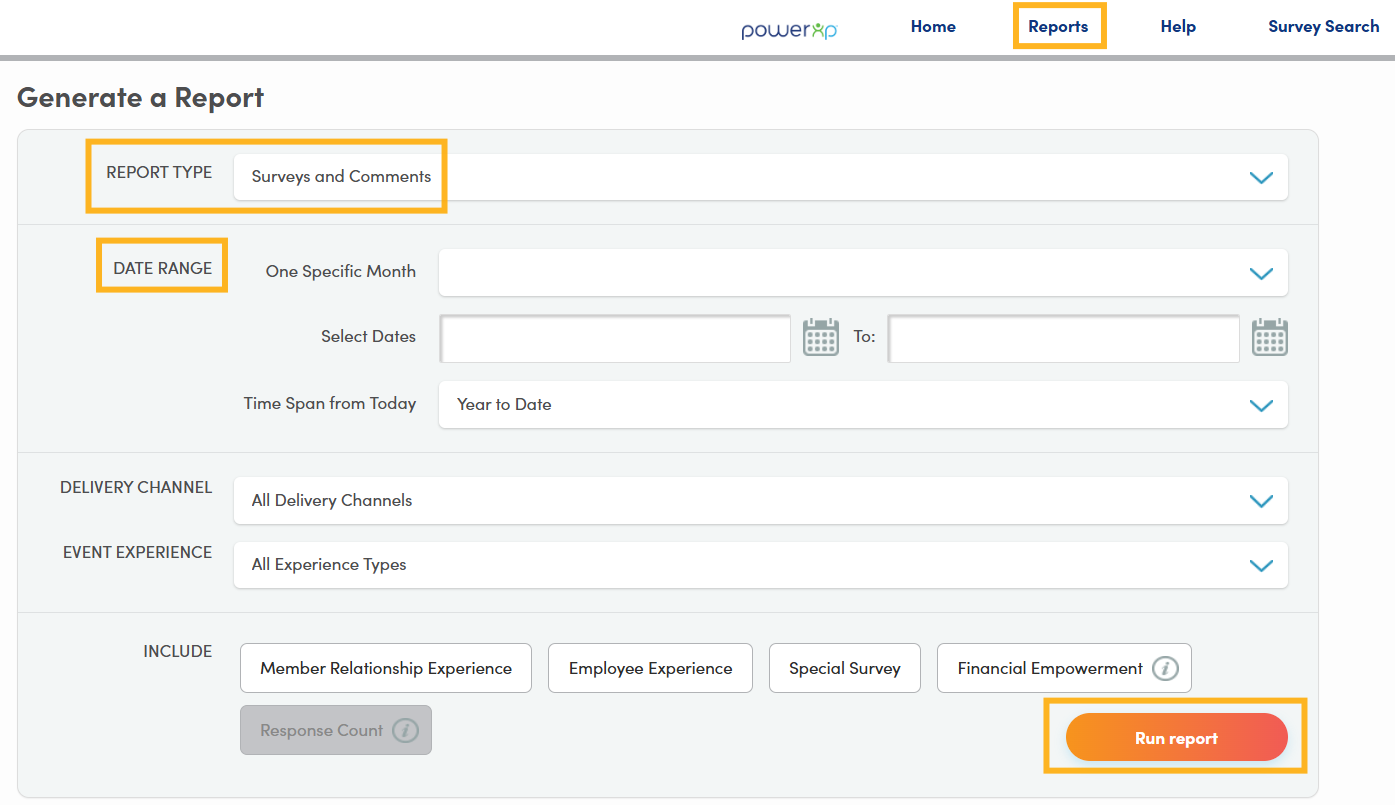
Within your MemberView portal, navigate to the Reports section to access the report generator. In the Report Type drop down, select Surveys and Comments, your desired date range, then click Run Report.
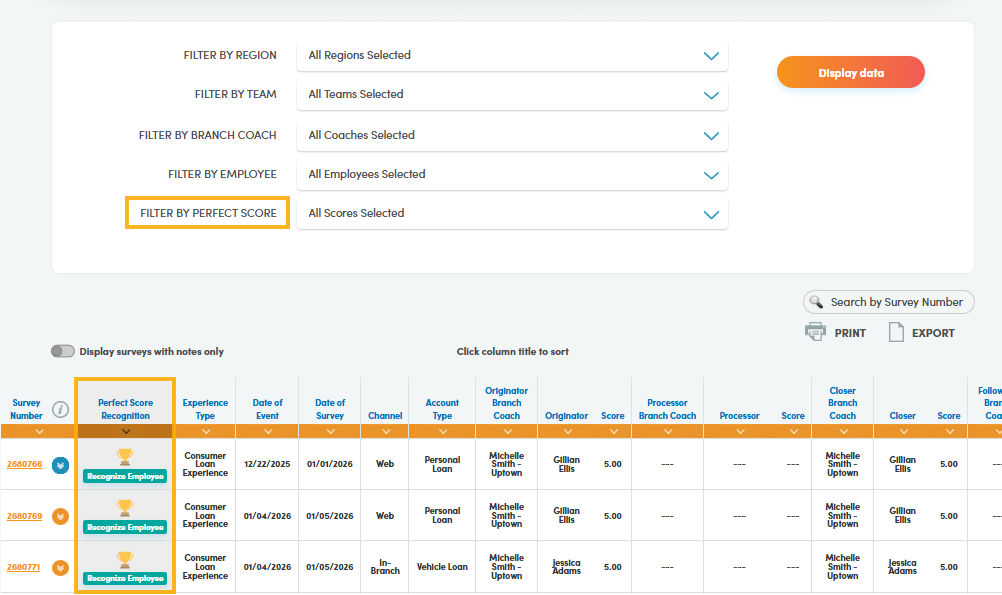
Once the report is generated, use the Filter by Perfect Score filter or the Perfect Score Recognition column to locate perfect scoring surveys.
How to Use the Perfect Score Recognition Tool
You can apply the Perfect Score filter to quickly surface surveys that achieved the highest possible scores across all KPIs. A perfect score is defined as -
- Net Promoter Score (NPS): 10
- Member Effort Score (MES): 7
- Total Experience Score (TES): 5
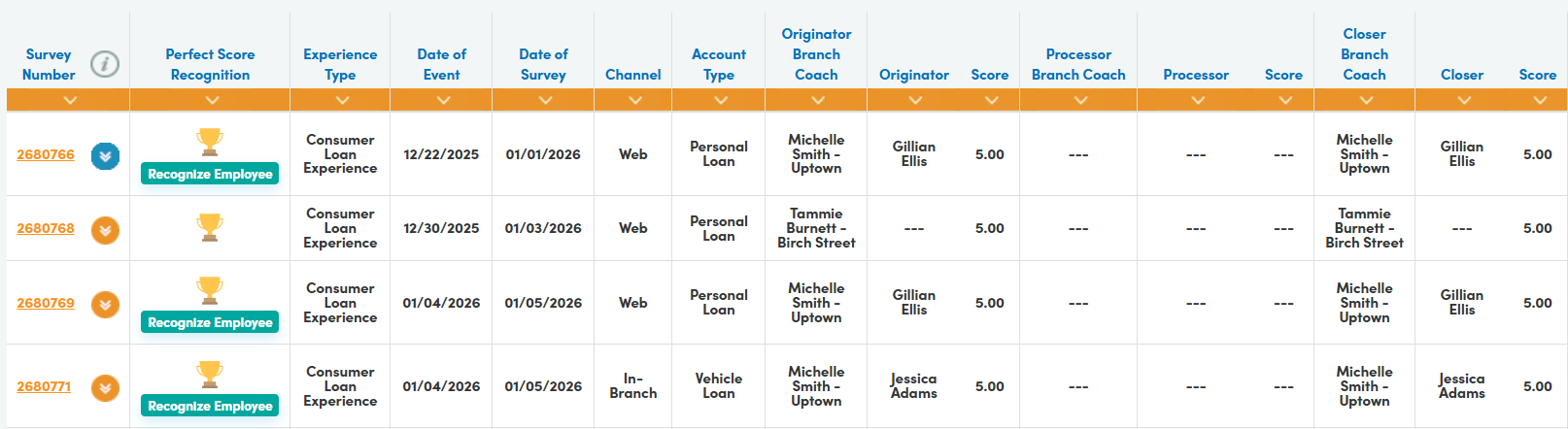
Surveys that qualify as a perfect score will display a trophy icon in the Perfect Score Recognition column.
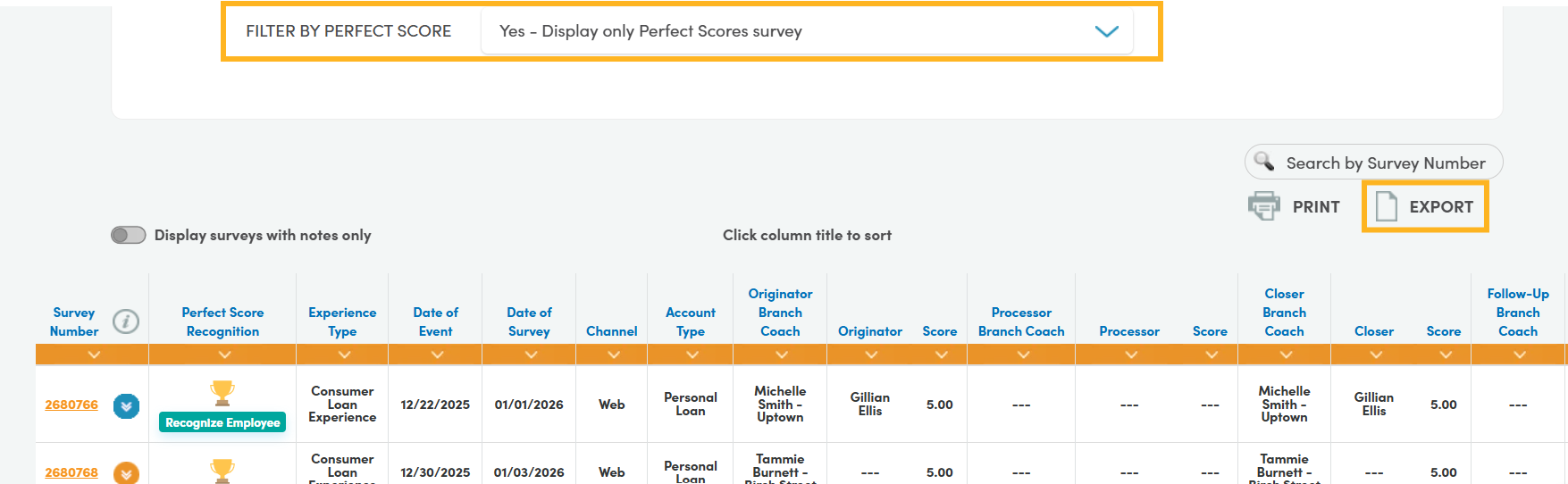
When Yes is selected for the Perfect Score filter, the report will display a list of all surveys with perfect scores for the selected timeframe.
Recognizing Employees
Under the trophy icon, a Recognize Employee button appears for eligible surveys.
Selecting the Recognize Employee button opens a window displaying the survey number, experience type, and the employee(s) associated with the survey, along with their role(s).
Each employee includes an email field where you can enter the employee's email address.
The Recognition From field automatically populates with the name of the logged-in user, but it can be edited if needed.
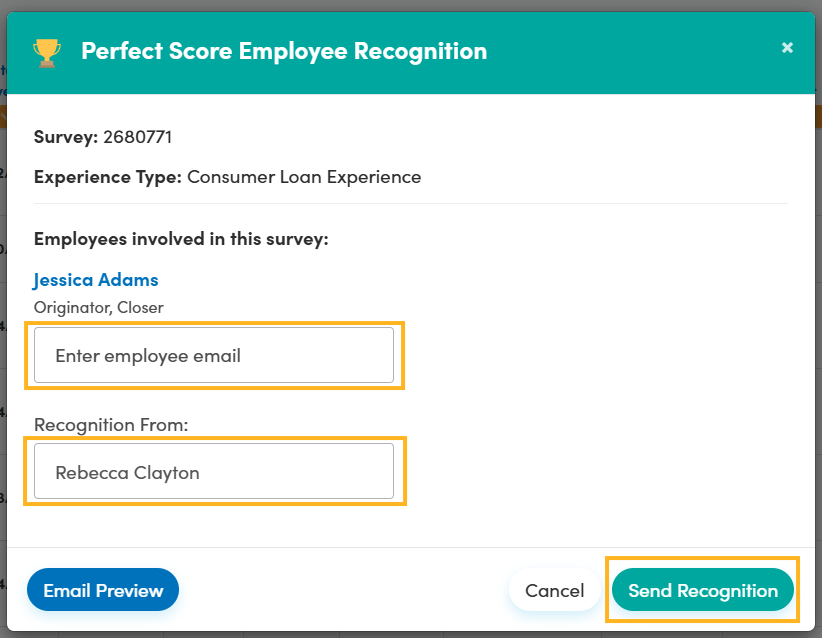
An email preview is available if you'd like to review the recognition message content before sending the message.
Note: The email preview is read-only.
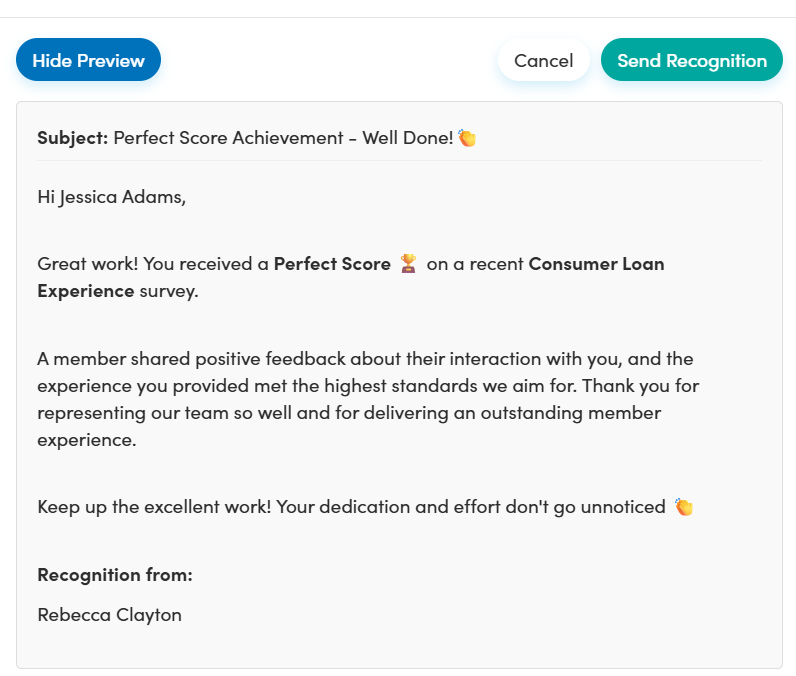
When you're ready to send the recognition message, click Send Recognition. The message will be sent and a confirmation message will appear.

Each employee can receive only one recognition message per survey. If recognition has already been sent to all employees associated with a survey, the Recognize Employee button will no longer appear, and only the trophy icon will be displayed for that survey.
Export Perfect-Score Surveys
If you'd like to export a list of surveys with perfect scores, you can export the Surveys & Comments report as you normally would. Before exporting, confirm that Yes is selected for the Perfect Score filter so only qualifying surveys are included.