


Utilizing Smart Search in PowerXP
Smart Search in PowerXP offers you a fast and flexible way to find the exact data you need, no matter where you are on the platform.
Rather than digging through individual visualizations or filters, Smart Search scans your entire dataset and highlights meaningful insights that you can take action on.
What Does Smart Search Do?
Smart Search acts as a global search bar for your PowerXP use. From any sheet, you can type a word, phrase, or set of terms, and PowerXP will scan your data and list out the search results. This makes it ideal for quickly jumping across your dataset and uncovering relationships between fields without manually navigating filters or visualizations.
How to Access Smart Search
You can launch Smart Search from any sheet:
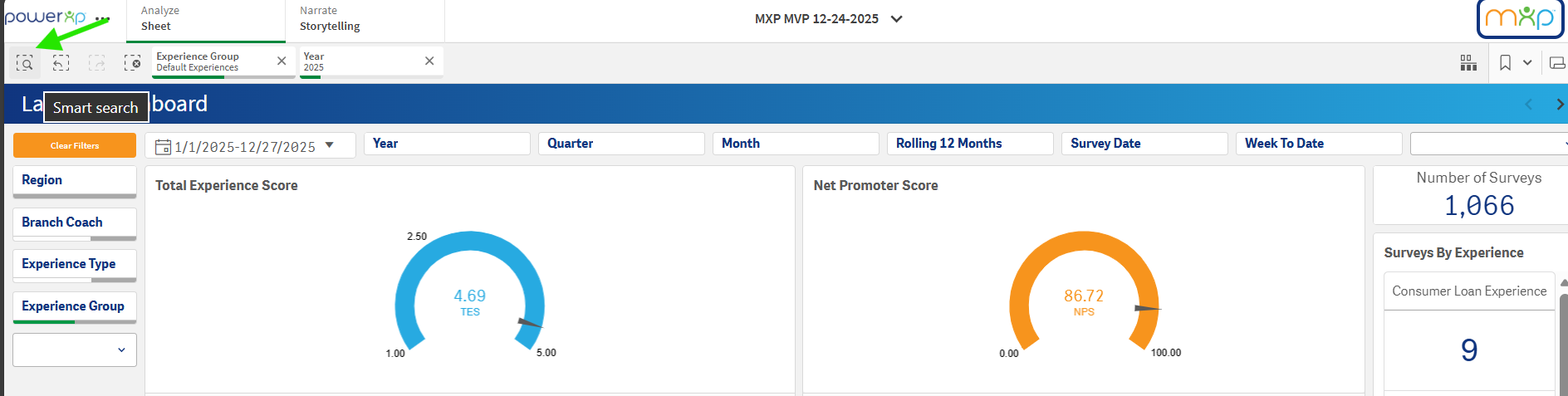
1. Go to the Selections bar at the top left of the sheet
2. Click the Smart Search icon (magnifying glass).
3. A search field will open where you can enter in any term you wish to use
From the example below, using the search term "Tammie Burnett" (one of our demo coaches) we are looking for an employee name. The results will display any mention of "Tammie" or "Burnett" within your data.

Once you've selected a field, such as "Coach Name", a filter will apply on your data and only show results based on your selection, as seen below:

Since this filter has now been applied to your PowerXP sheets, moving sheet-to-sheet will keep the filter applied and present you all the data attached to the coach, Tammie Burnett. This same logic can be applied to member emails, members, or even employees that are surveyed, not just coaches.
Aside from searching by member or employee-centric information, you can search for words, phrases, or terms such as this example below as we are looking for any mention of the word "exceptional". Perhaps we are hoping to identify if any member experiences were labeled as "exceptional", Smart Search allows for us to do just that.
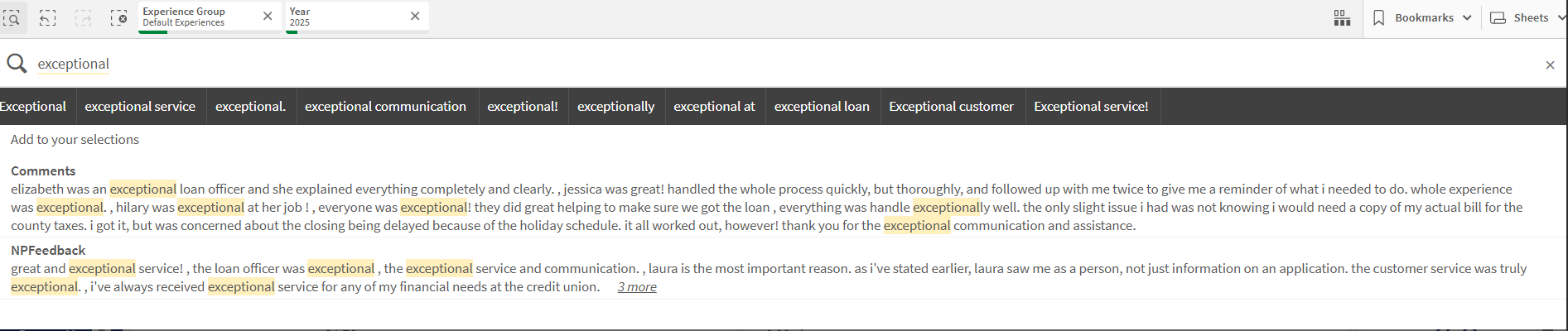
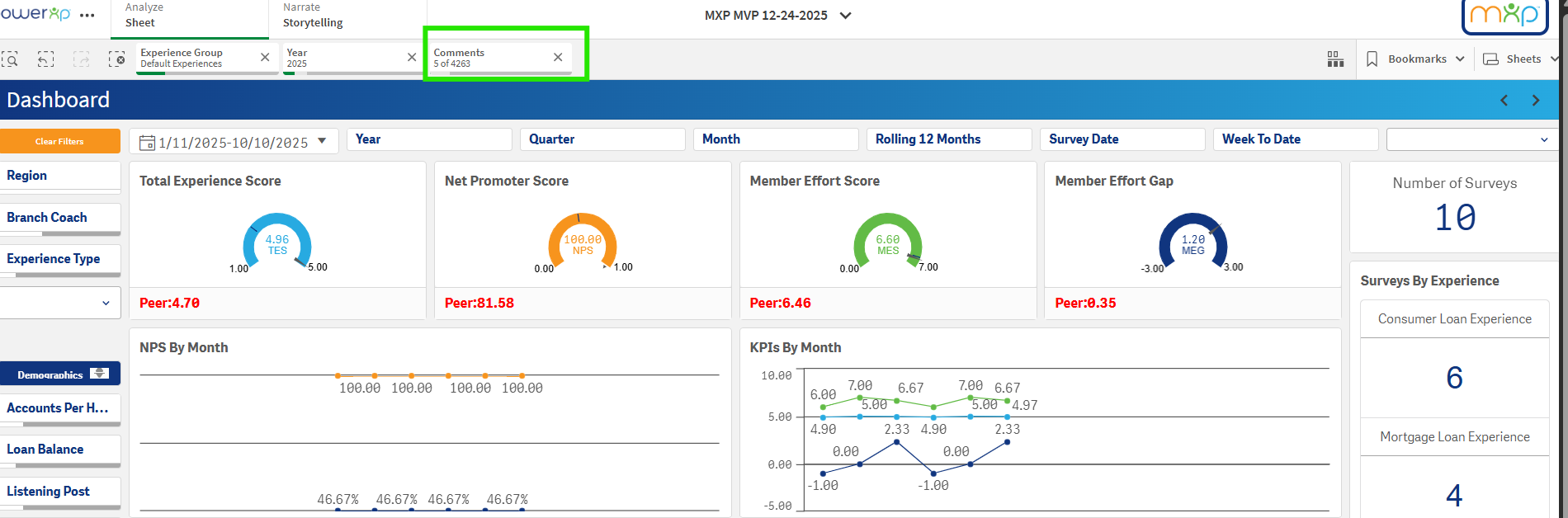
Clicking on the first group of results in the "Comments" Smart Search result, will filter on these comments specifically and apply on your PowerXP sheets. We can now see how these 5 comments scored, how many surveys these comments were tied to, who the members were that left these comments, essentially allowing you to slice and dice the data as you see fit!
Smart Search is a great way to make your data analysis easier and more efficient, all while providing you another avenue to gain more insights to your member feedback.
Please reach out to your Client Success Manager with any questions you might have on how best to utilize this tool.

